Business Laptop Buying Guide: What Offices Should Check Before Buying
By ATTPL IT · · 2 min read

Laptops are now the main work tool for most office staff. Buying the cheapest consumer model often costs more later through slow performance, short battery life and repairs with no on-site support. A short checklist helps businesses buy machines that last their full life.
1. Match the laptop to the role
- Office and accounts staff: mainstream processor, 16 GB RAM, SSD
- Designers, engineers and analysts: higher-performance CPU, more memory, dedicated graphics if software needs it
- Field staff: light weight, long battery life, sturdy build
- Management: portability plus video-call quality
2. Specifications that matter
- SSD storage instead of hard disks
- Enough RAM for the browser and business software in daily use
- A good webcam and microphone for meetings
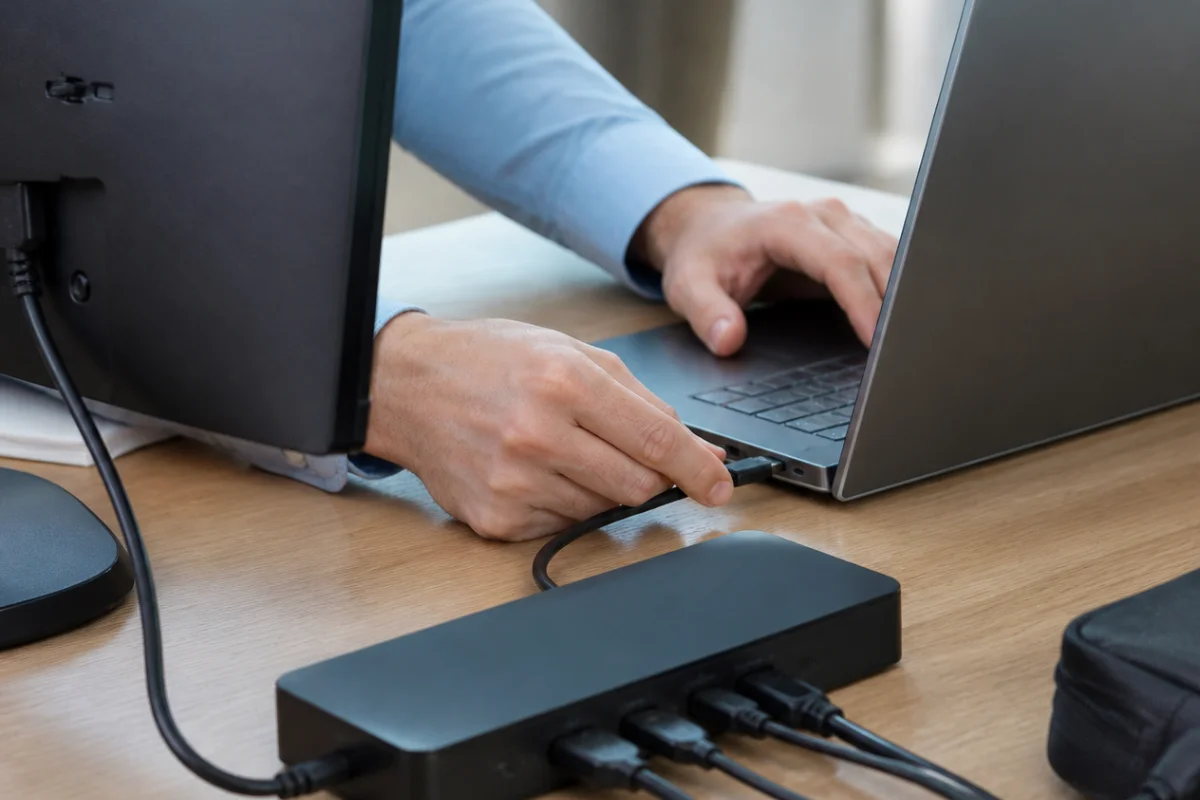
- Ports you actually use, or a dock
- Screen size and brightness for long work hours
3. Business features
Business-line laptops usually offer longer warranties, on-site service, spare part availability, TPM security chips and management tools. Professional operating system editions support disk encryption and central management. These features matter more as the number of devices grows.
4. Standardise and track
Buying two or three standard models simplifies support and spares. Record every laptop with serial number, user, purchase date and warranty in an IT asset register. Set up backups as described in our data backup guide before a laptop is handed over.
5. Security setup before handover
A new laptop should be prepared before it reaches the employee, so that every device starts with the same protection.
- Update the operating system, drivers and firmware
- Turn on disk encryption and set a strong sign-in method
- Install approved antivirus or endpoint protection
- Create a standard user account; keep admin rights with IT
- Install only licensed business software
- Configure backup, email and company Wi-Fi
- Record the asset tag and handover acknowledgement
When an employee leaves, collect the laptop on the last day, back up required work data, remove accounts and re-image the device before giving it to someone else. Our password and MFA guide explains sign-in protection in more detail.
6. Lifecycle and disposal
Plan replacement every few years based on performance and warranty. Before disposal, wipe data securely and follow e-waste rules. ATTPL IT Solutions supports procurement, setup and AMC for office devices, and business equipment finance options are covered on ATTPL Finance. For a discussion about your requirement, contact ATTPL HOLDCO or call toll-free 1800-890-0815.
Frequently asked questions
How much RAM does an office laptop need?
16 GB is a comfortable standard for most office work today; heavy users may need more.
Is an extended warranty worth it?
For business use, on-site warranty for the expected life of the laptop usually reduces downtime and cost.
Should data be removed before disposal?
Yes. Use secure erase tools and keep a disposal record.
Sources
This article is general information, not professional advice. Rules, rates and schemes change; please check the official sources and consult a qualified professional.